Changing an ECT or mentor’s contract period or schedule in the admin console
Context
We’ve designed many journeys in the admin console to help admins manage ECTs and mentors, such as journeys to change an ECT or mentor’s personal details, or to change their training programme.
We’ve now also designed a journey to help admins change an ECT or mentor’s contract period or schedule.
This could be because the ECT or mentor has a specific situation which requires the contract period or schedule to be changed from their original details.
What we’ve designed
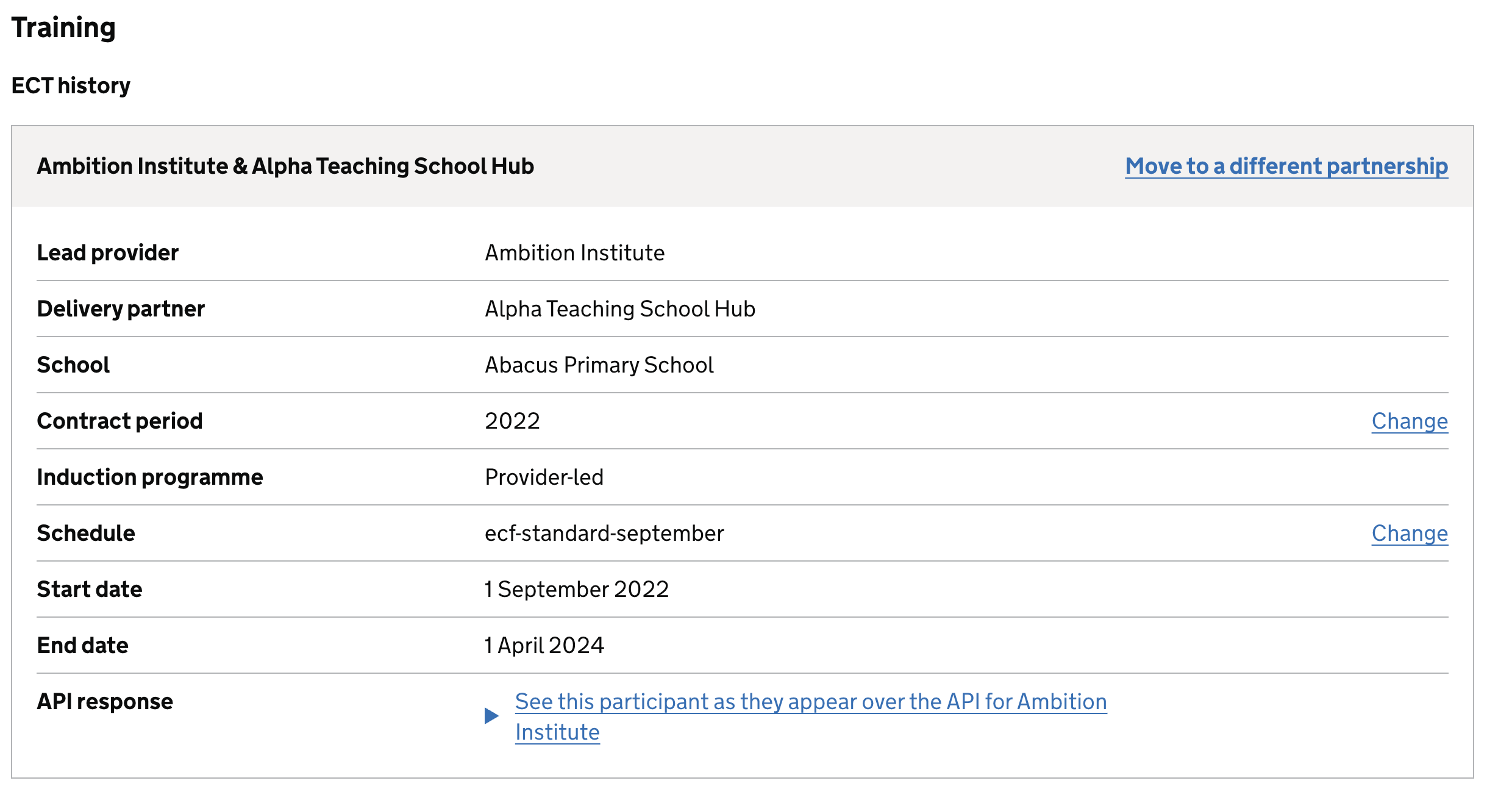
We’ve designed the ‘training’ tab to show the ECT or mentor’s training details, which also includes the contract period and schedule.
We’ve added ‘change’ links to the contract period and schedule fields.
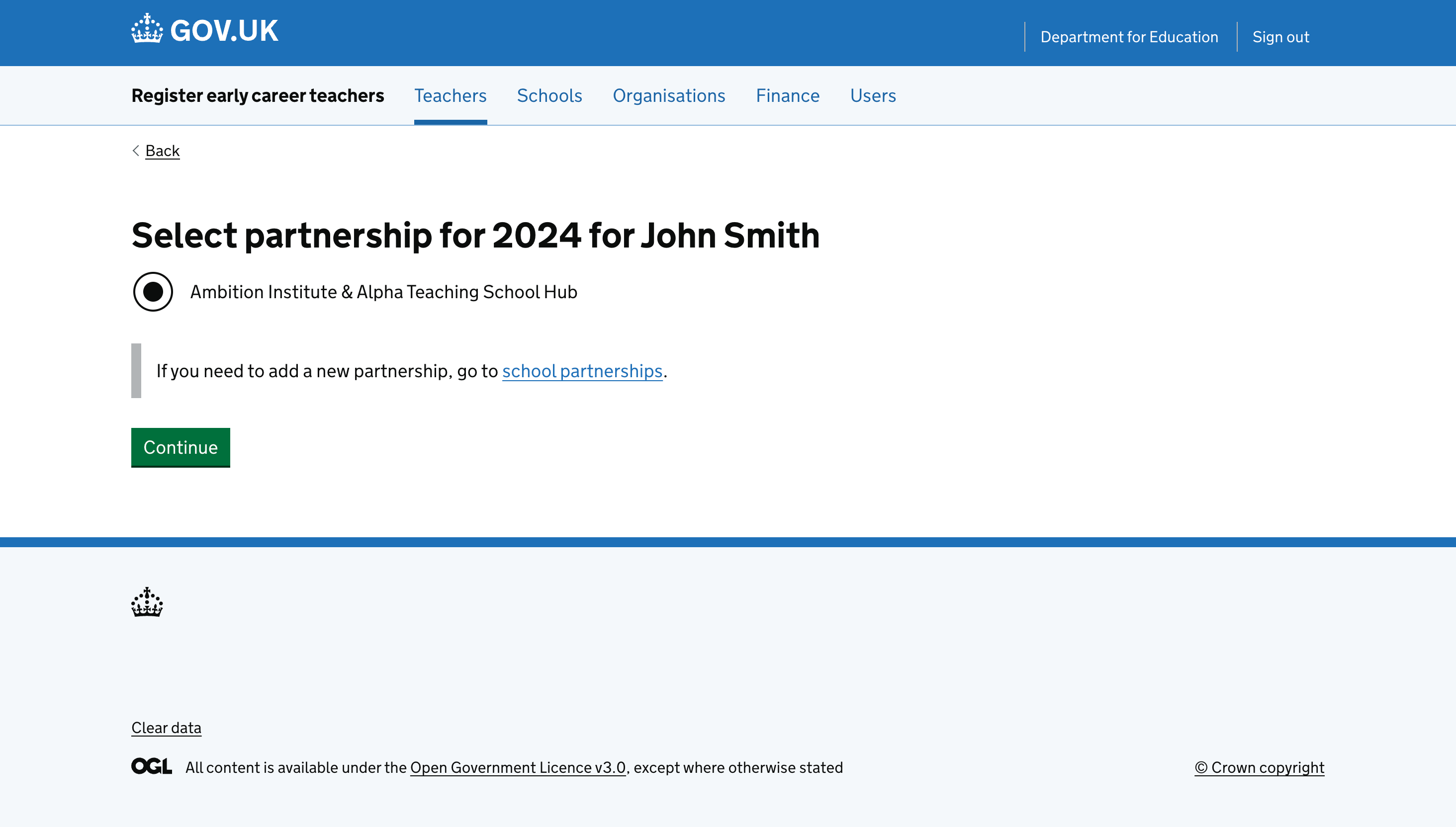
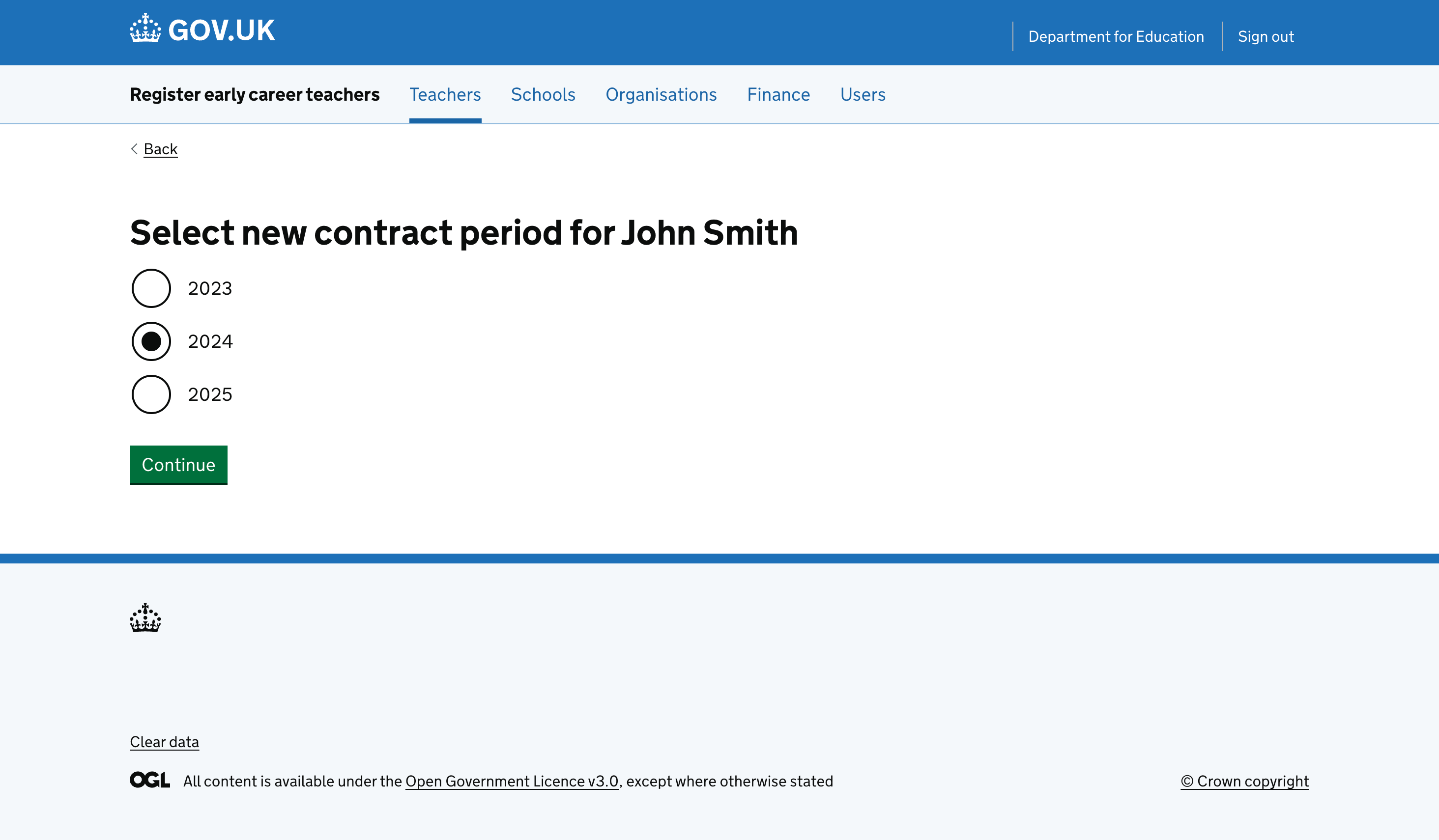
When changing the contract period, we will ask the user to also select the relevant partnership for the ECT or mentor for that contract period. This is based on the partnerships that are already set up for the school for the new contract period.
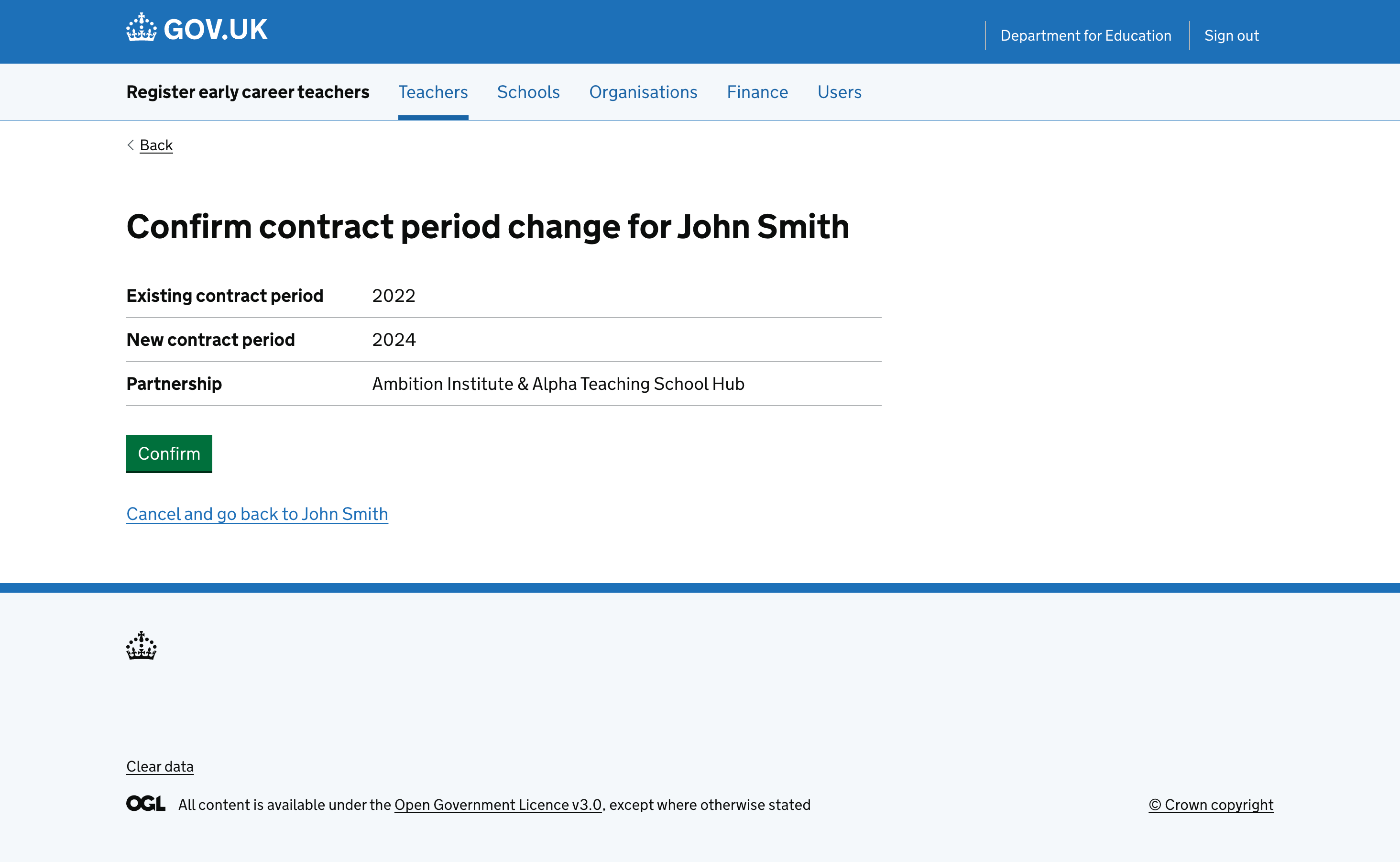
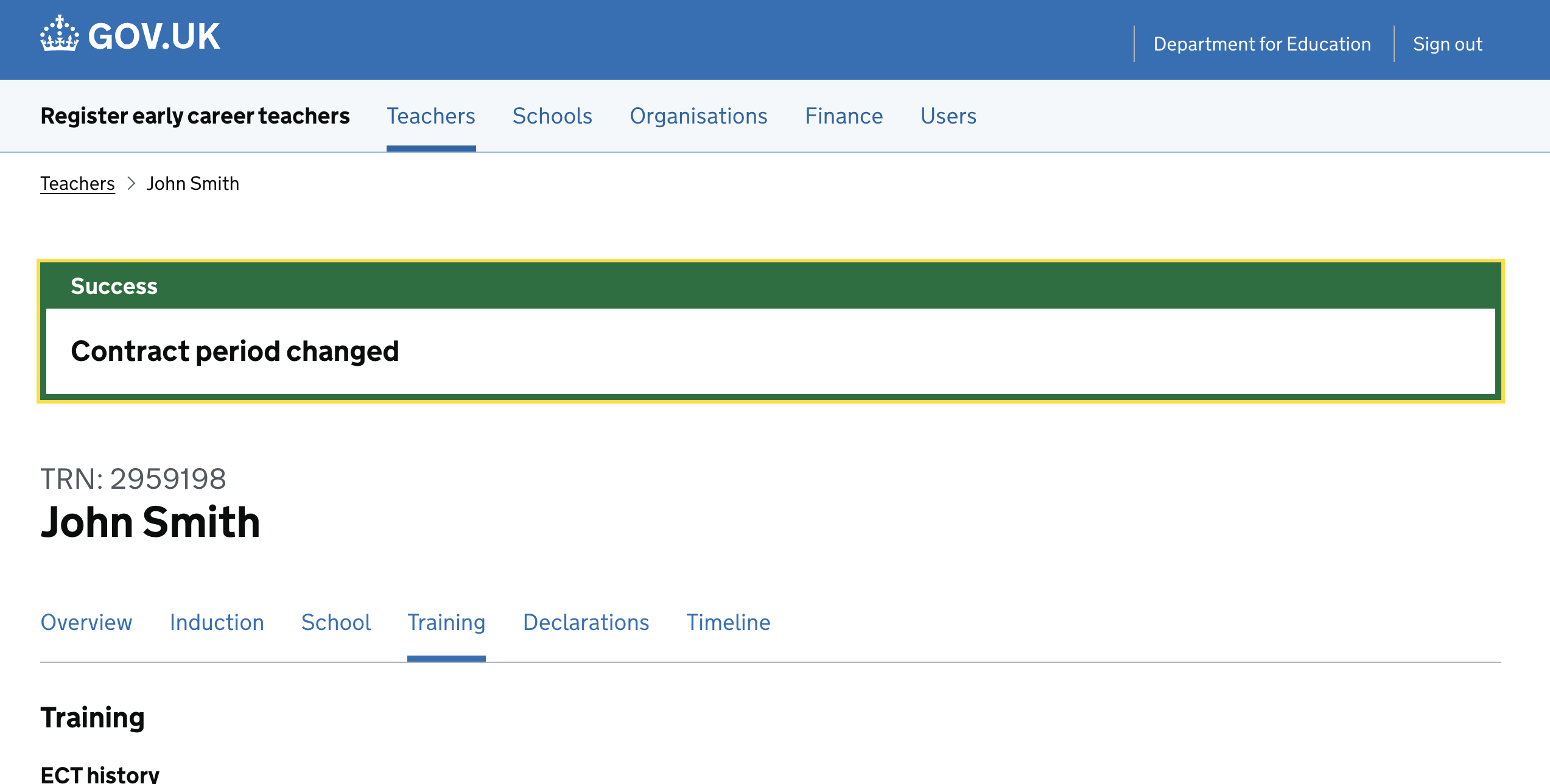
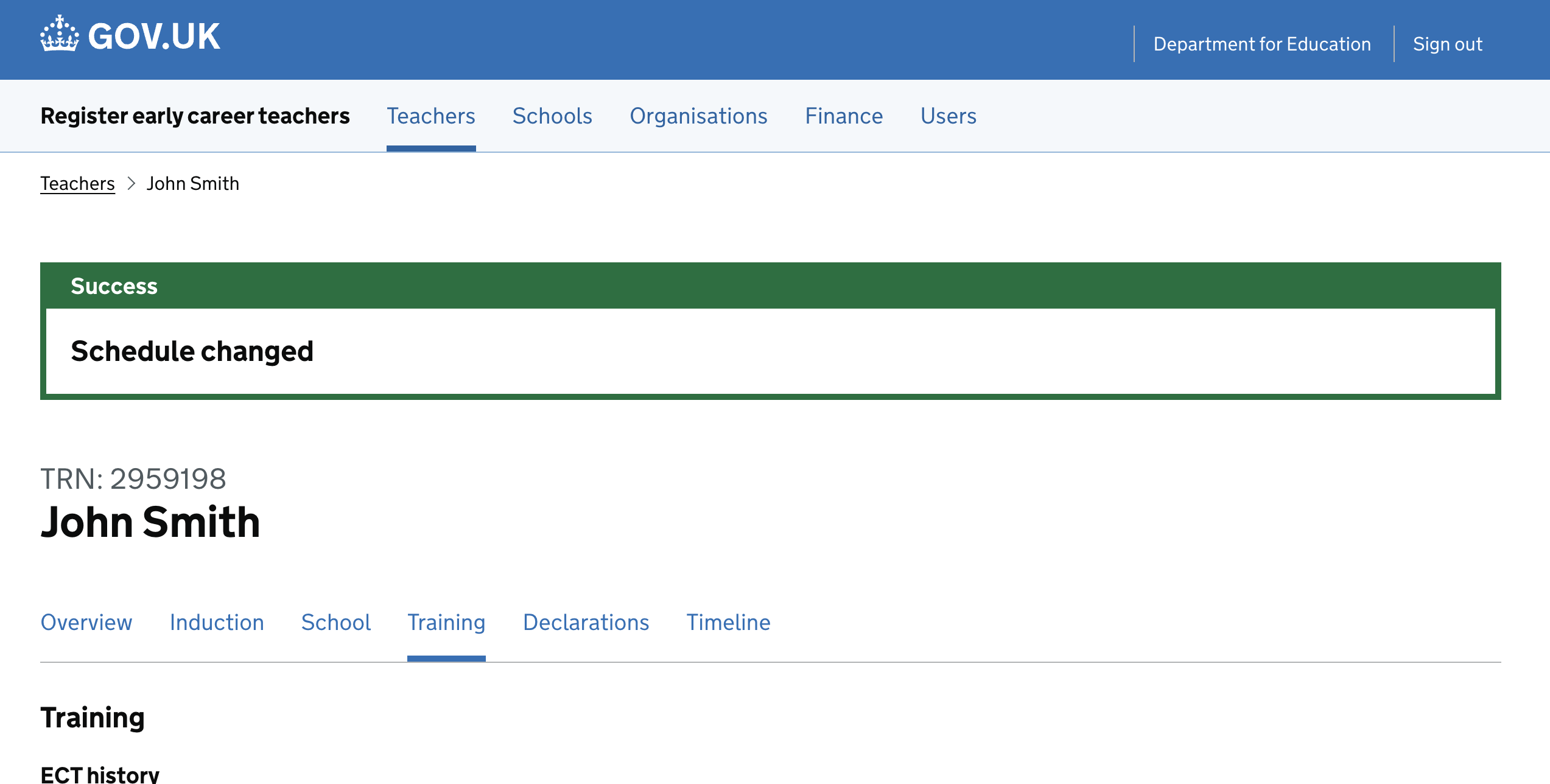
We then ask the user to confirm their answers, and then show them a confirmation banner.
If a partnership is not found for the new contract period, we will tell the user that they will need to add a partnership for the contract period at the school level. We then link the user to the journey where they can do so.
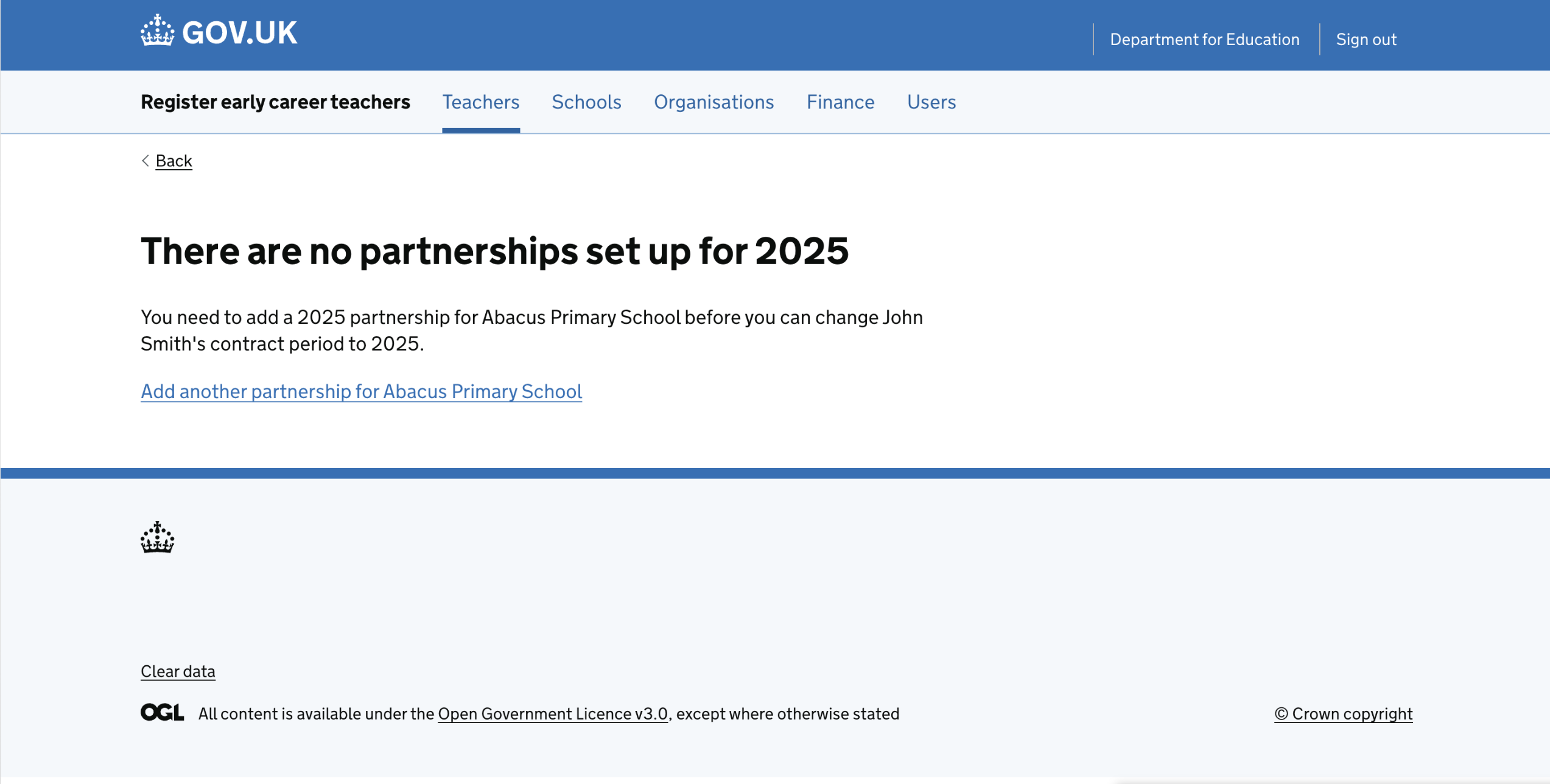
We’ve researched this with users, and while it works as a journey, we’ve identified that we’d look to iterate this journey so that it automatically routes back to the ‘change contract period’ journey once the partnership has been added.
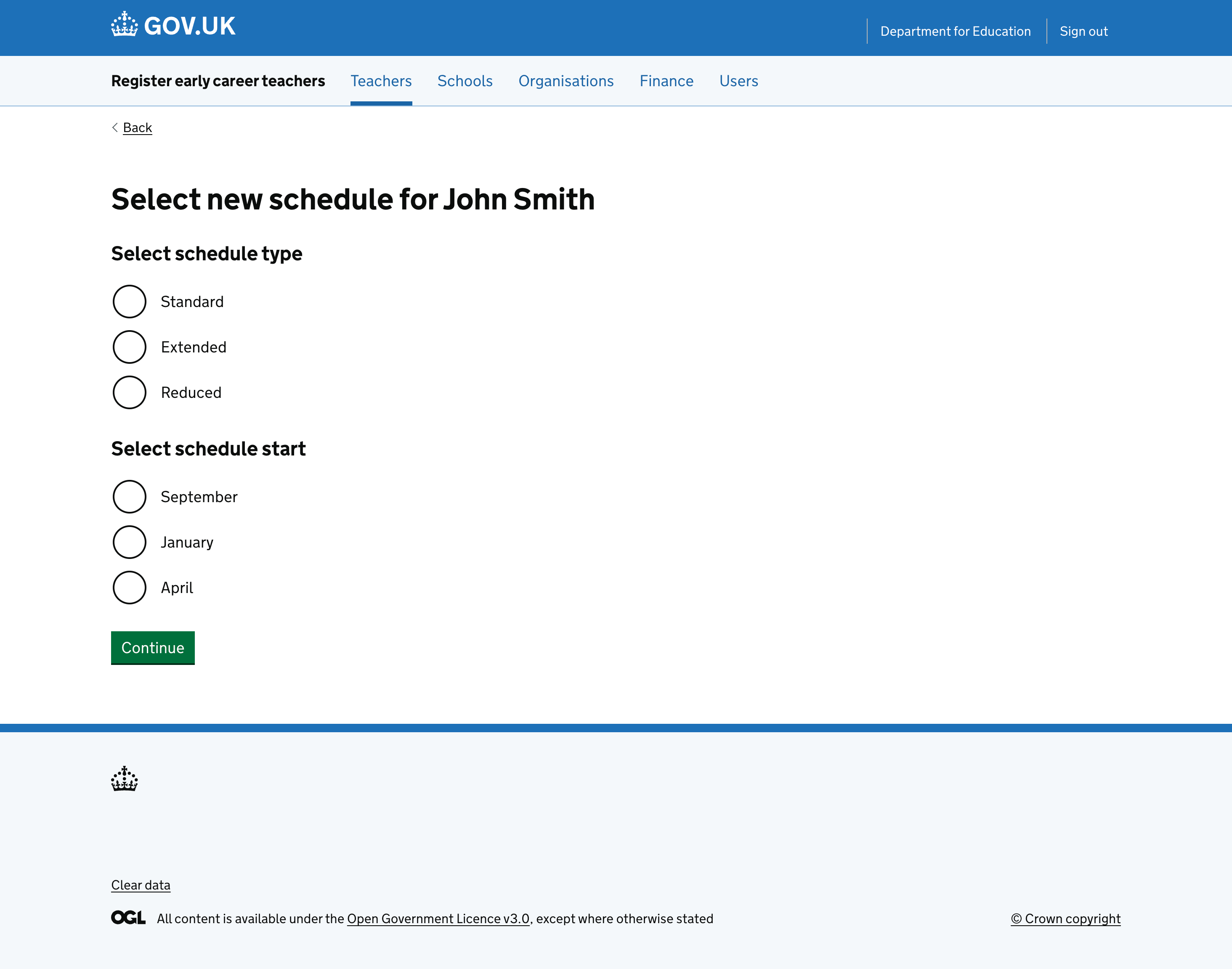
For changing the schedule, we ask the user to select the schedule type and the schedule start month. We then ask the user to confirm their answers.
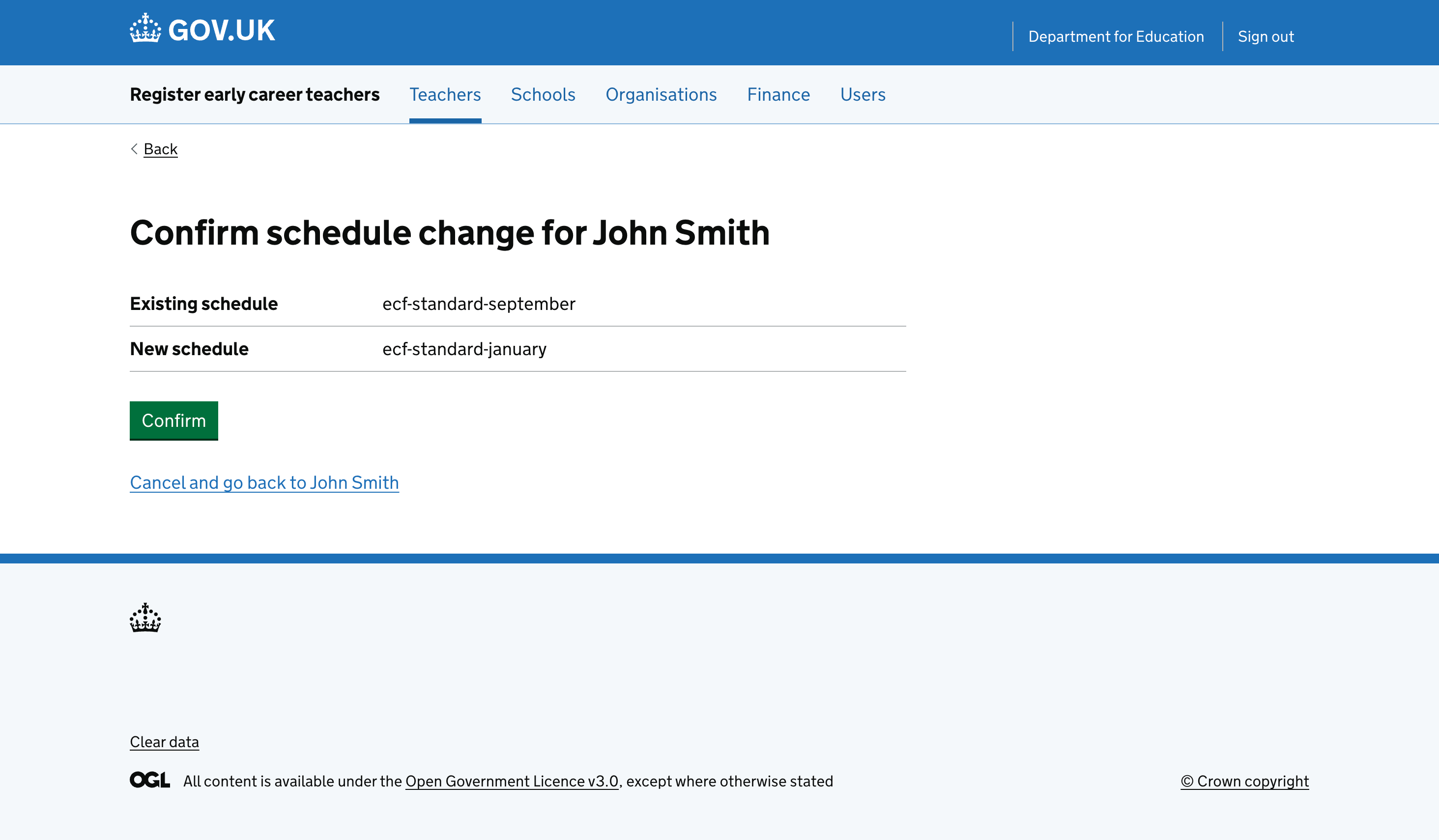
Once the user has confirmed their answers, we will show them a confirmation banner.
We’ve confirmed that this is the expected behaviour with admin users.